Tips on using GoogleEarth
To download and install Google Earth, click here. Click on “Downloads.”
Viewing placemark questions and GoogleEarth together
Controlling whether the browser appears within the GoogleEarth window or in a separate window
Click to download and open placemark file for all chapters
Environmental Science: A Global Concern (hard cover)
Principles of Environmental Science (soft cover)
Click to go to chapter questions
Environmental Science: A Global Concern (hard cover)
Principles of Environmental Science (soft cover)
Opening a Placemark file
1. Open a placemark file as follows:
On a PC: double-click the link, and it will open GoogleEarth (if it is installed on your computer)
and load your placemarks into the Temporary Places list (in left pane of window)
On a Mac: Start GoogleEarth. Double-click the link to download the placemarks file to your hard drive or desktop;
then double-click on the name or icon of the downloaded file.
Placemark files can be identified by their “.kml” or “.kmz” extension, for example, Enviornmental_Science_Cunningham.kml is a placemark file.
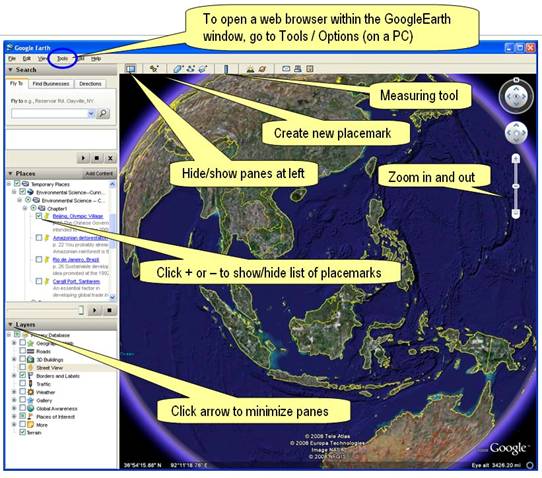
2. When you open a placemark file or link, you should be able to find the placemarks in the Places listing on the left side of your GoogleEarth window. See example below.
Look near the bottom of the Places list, under Temporary
Places.
(If you have highlighted a different folder in the Places list when you open a
new placemarker, it may open in that highlighted folder.)
3. Double-click on a placemark link (blue names sorted by chapter), to navigate
to its location. Double click on the placemark link or symbol to open the
description and question text.
4. Be aware: Different versions of the software may look somewhat different than the view below, but the basic elements are similar. Slow network connections or older computers may make the program may run slowly.
5. Online GoogleEarth Help functions can be found in the Help menu.
Viewing placemark questions and GoogleEarth together
|
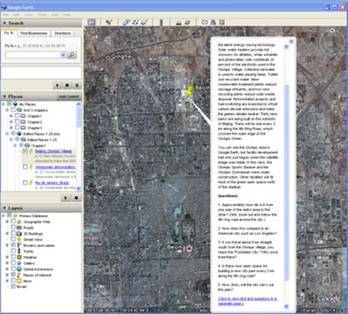
Each placemark has a description and questions. These questions pop up when you double-click on the placemark (or on its name in the Places list). The pop-up window is only temporary. To keep questions in view, open them in a web browser: Click on the links at the bottom of the placemark’s pop-up window. |
|
|
The web site may appear in the GoogleEarth window, as shown here:
|
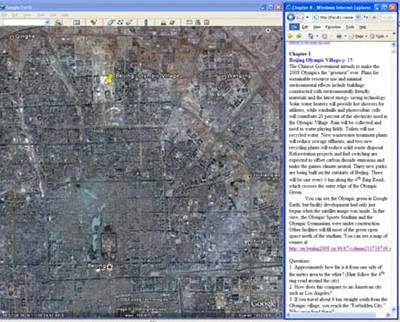
OR The web site may appear in a separate browser window. You can arrange windows side-by-side for easier viewing, like this:
|
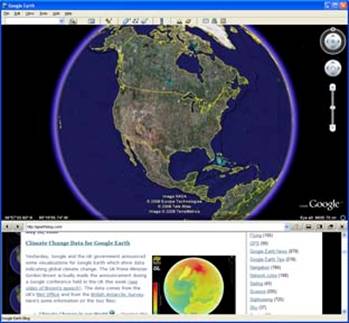
You can control whether the browser appears within the
GoogleEarth window or in a separate window:
|
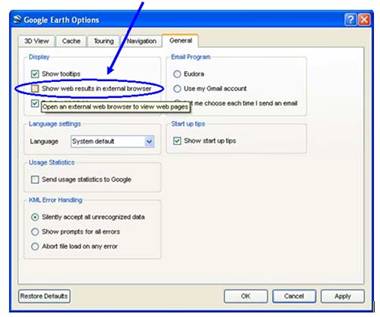
On a PC: Click on the Tools menu (see blue circle in figure at top of this page). Then select Options, then the General tab. Click on (or off) the option to “Show web results in an external browser.” If this option is
unavailable, or grayed out, then your operating system does not currently
allow this setting.
|
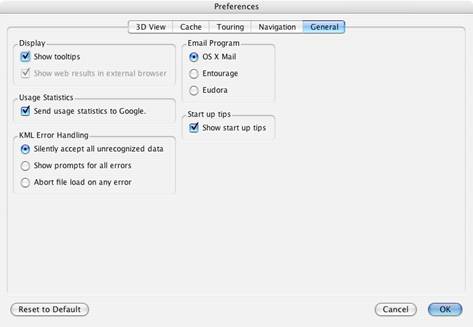
On a Mac: Click on the GoogleEarth menu Then select Preferences, then the General tab. Click on (or off) the option to “Show web results in an external browser.” If this option is
unavailable, or grayed out, then your operating system does not currently
allow this setting.
|
If this option is unavailable, or grayed out, then
you should consider arranging your GoogleEarth window and a browser window next
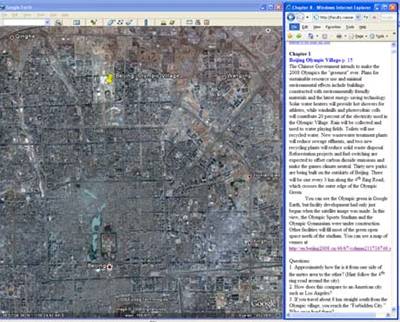
to each other, like this: